User guide · Doctors
Doctors
Take patients’ calls, record the visit, issue PT 33 prescriptions and follow the ones you issued.
1Before you start
Doctor accounts are created by the administrators: sign in with the email and password you were given. A doctor account works on one device at a time; signing in on another signs out the first.
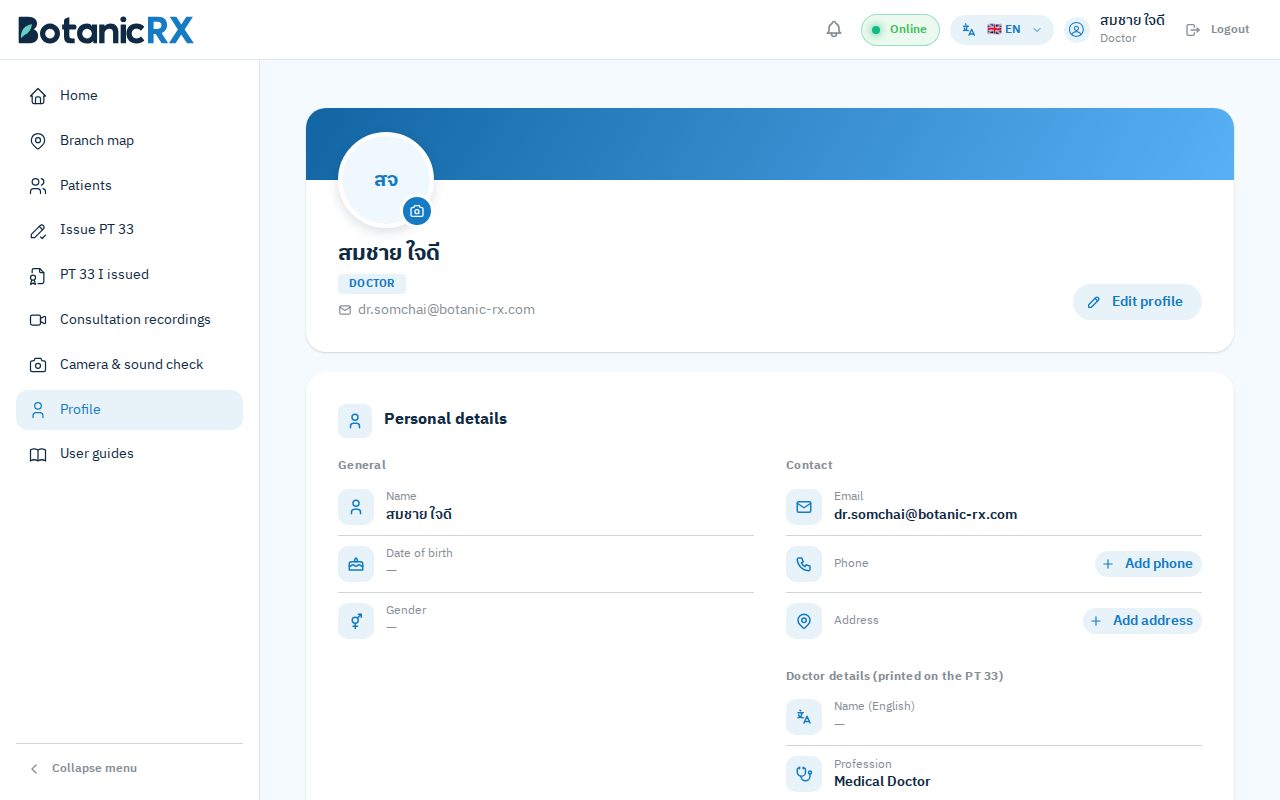
Check your profile
- Profession and licence number (printed on the PT 33)
- Number and date of your controlled-herb prescriber training certificate: without it you cannot issue a PT 33
- Your name in English, for patients using the app in English
Test before your shift
Open "Camera & sound check" and check the camera, microphone and speaker.
2Going on duty and taking calls
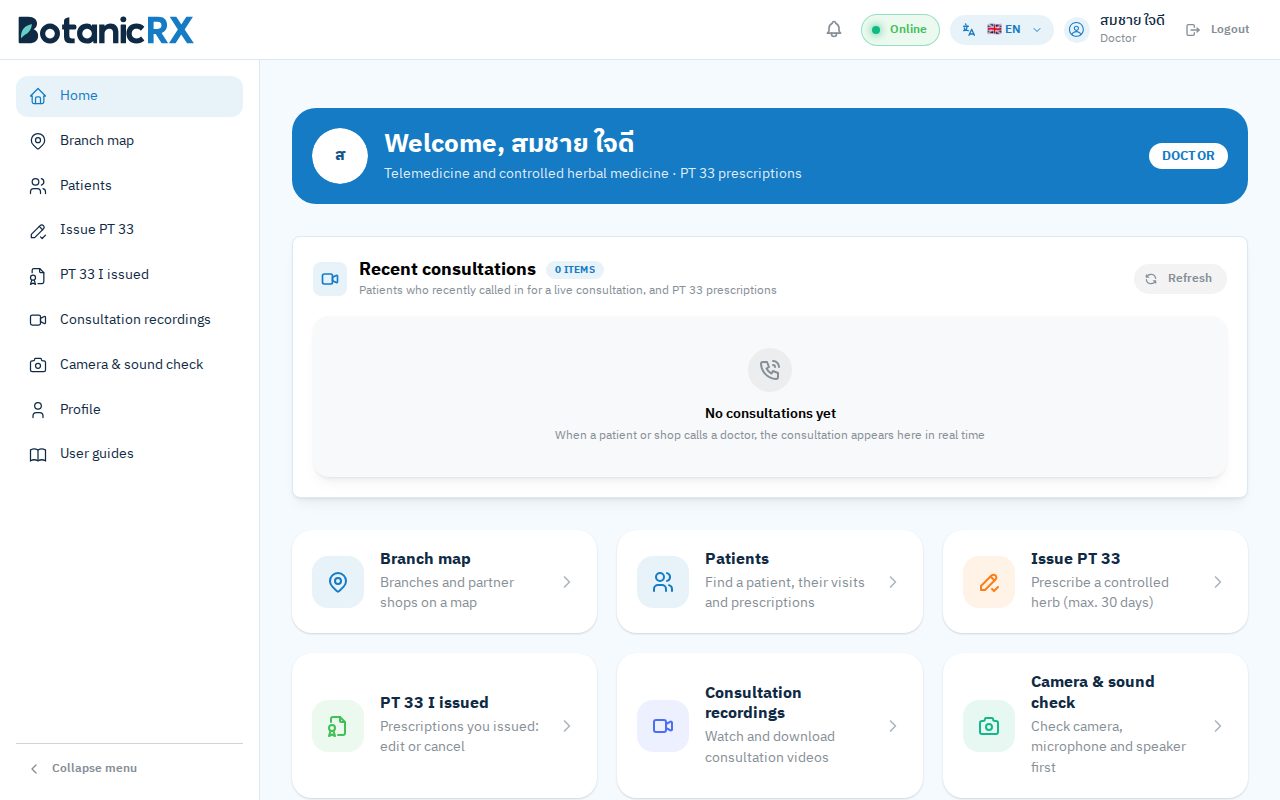
- Set the status button at the top right to ● Online: patients and shops see that you can take a call
- When a patient calls, a window shows the patient’s name and whether they are calling from a shop or from home
- Answer, and the consultation room opens
- At the end of your shift, set the status back to offline
The home page also shows what needs doing: correction requests from shops, calls not finished, and your recent consultations.
3During the consultation
- Patient details: name, age, ID number and photo, symptoms, drug allergies and long-term conditions as the patient or shop entered them
- Consent: the patient accepts remote care, recording and the PDPA notice before joining; you see when they signed
- Notes (SOAP): open the notes panel during the call and fill in S, O, A and P; they are kept as the outpatient (OPD) record
- Captions and translation: for foreign patients, turn on captions; you read them in Thai
- Issue the PT 33 in the room: open the prescription panel without hanging up
- Recording: the consultation is recorded and encrypted automatically
The call dropped
An unfinished call stays on the home page; the patient can rejoin it. There is no need to start a new one.
4Issuing a PT 33
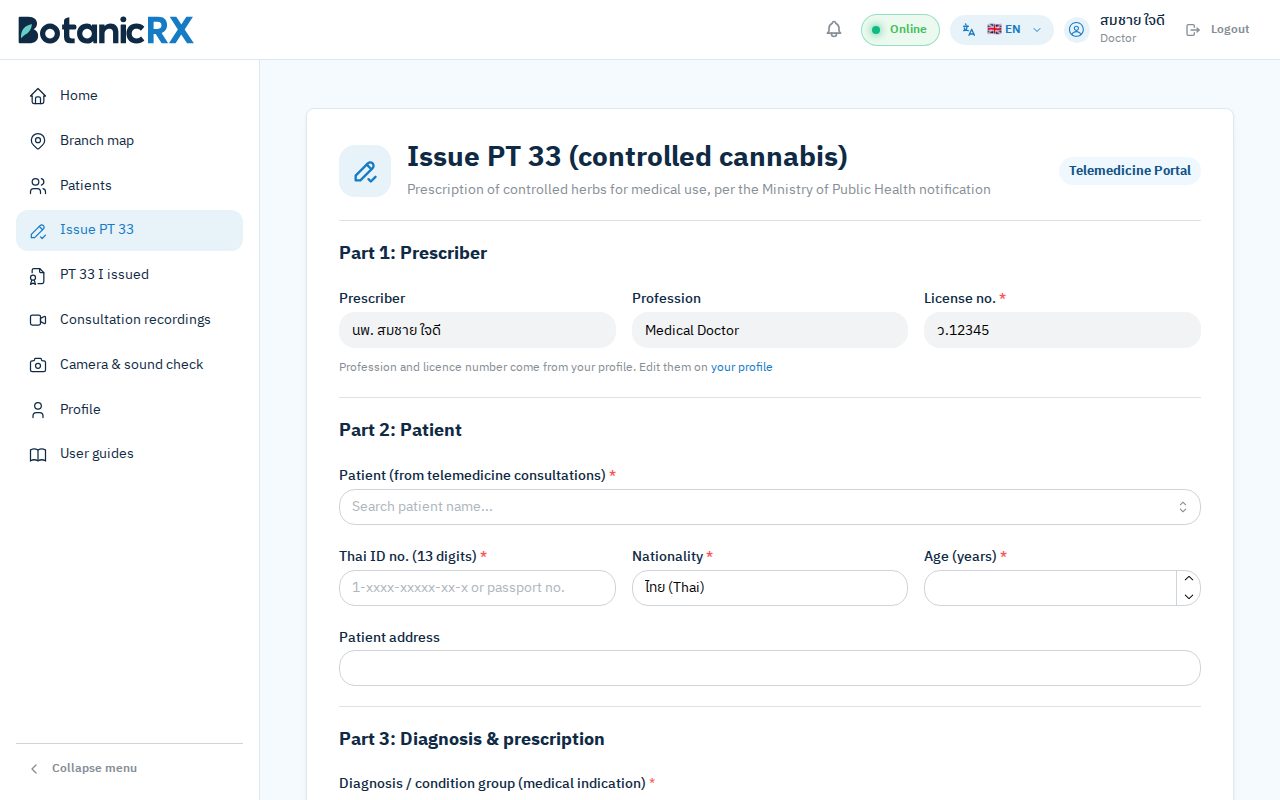
- Part 1, the doctor: taken from your profile; change it there
- Part 2, the patient: choose the patient from the consultation; ID number, nationality, age and address are filled in
- Part 3, diagnosis and items: the condition group, the controlled herb, the daily amount and the number of days (30 at most), then the directions
- Part 4, pickup branch: walk-in patients collect at the shop they came from, online patients at the branch they chose. Only branches with a valid licence can be chosen
- Part 5, signature: sign, then tap Issue the PT 33
It cannot be issued when
your training certificate is missing · you have not signed · the branch has no valid licence.
5Issued prescriptions and shops’ correction requests
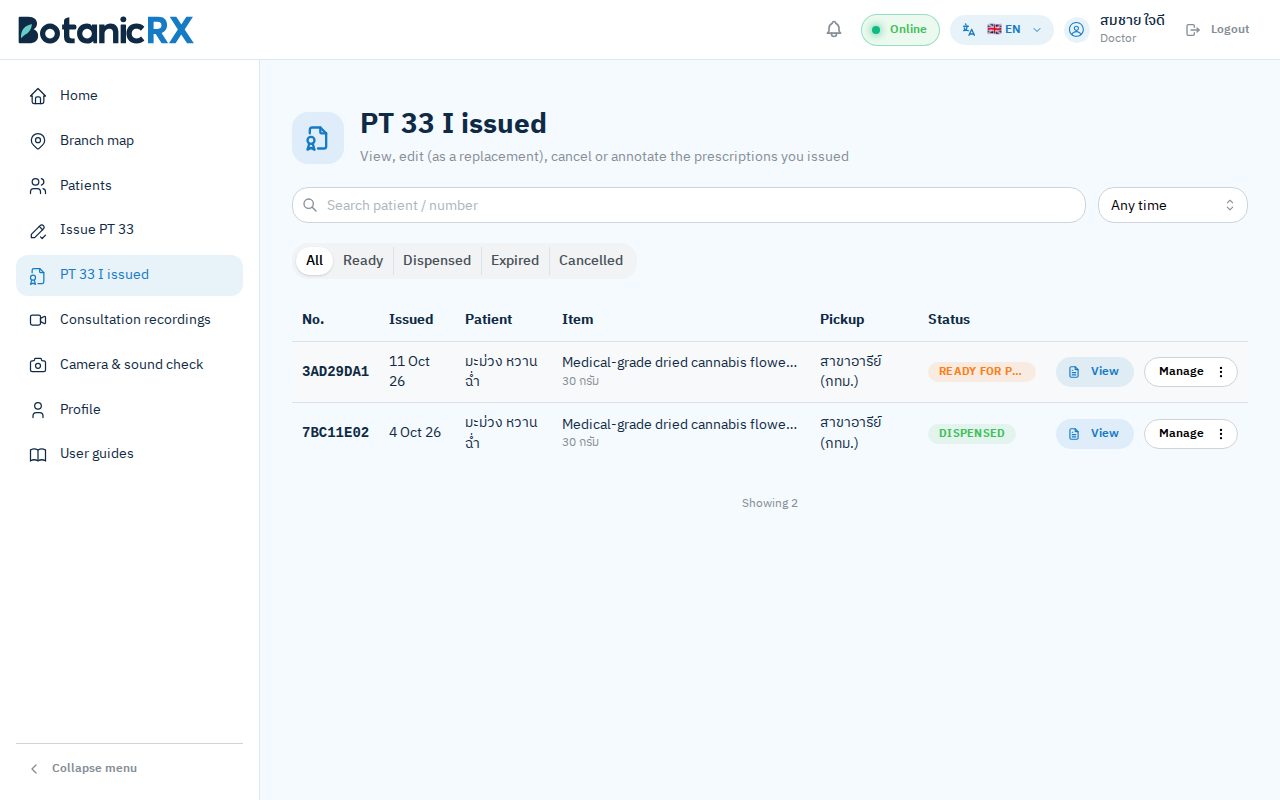
- Only the prescriptions you issued. Filter by status: all / waiting / dispensed / expired / cancelled
- Tap Manage at the end of a row: the menu shows only what can be done with that prescription
- Correct (issue a replacement): a new prescription replaces the old one, which is cancelled and points to the new one
- Issue a new one from this: start a new prescription with the same details, e.g. when the old one expired
- Cancel: choose a reason; the patient and the shop see it was cancelled
- Add a note / history: add a note, and see what changed on the prescription and when
- Correction requests from shops: a shop reports what is wrong (e.g. the name or ID number); the request shows on your home page. Open it, then correct it or answer
6Patient records and recordings
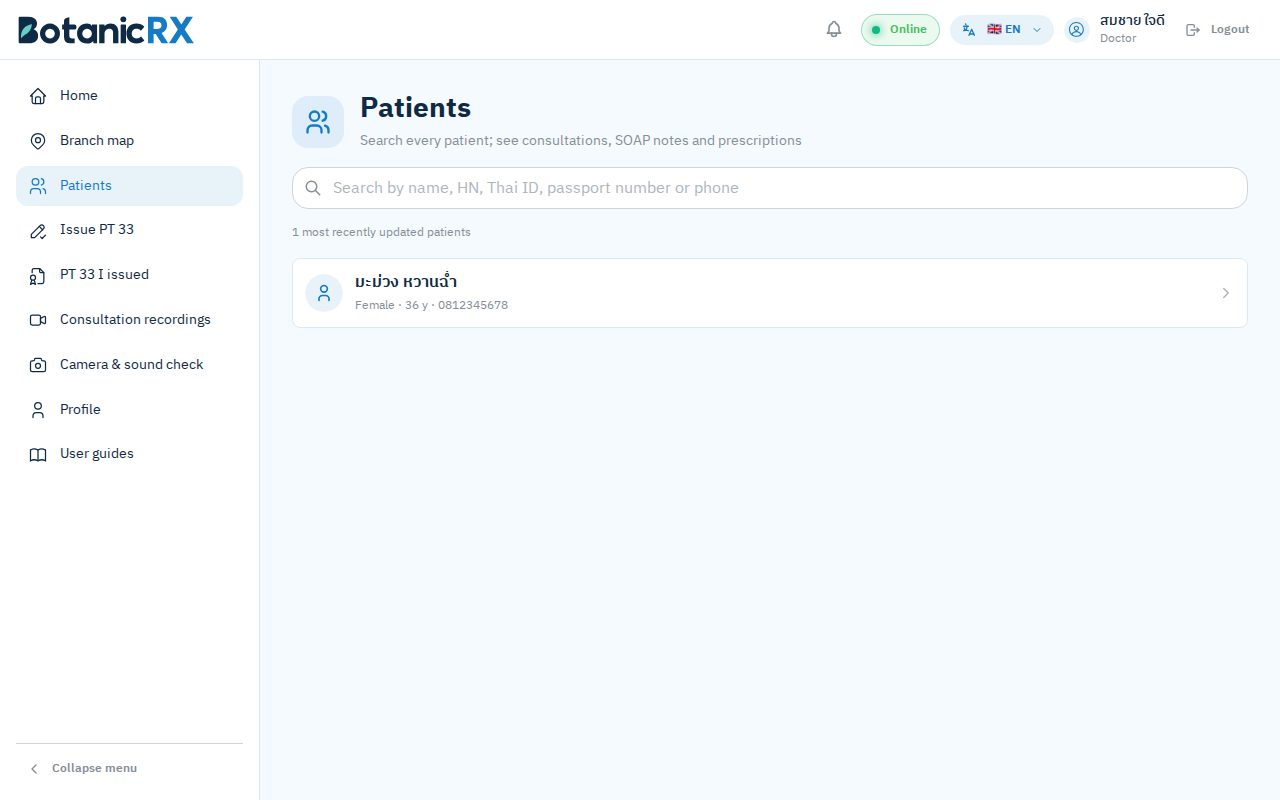
Patients
Search by name, HN or ID number, then open the consultation history, SOAP notes and prescriptions, and print the OPD record. Every look is logged under the PDPA.
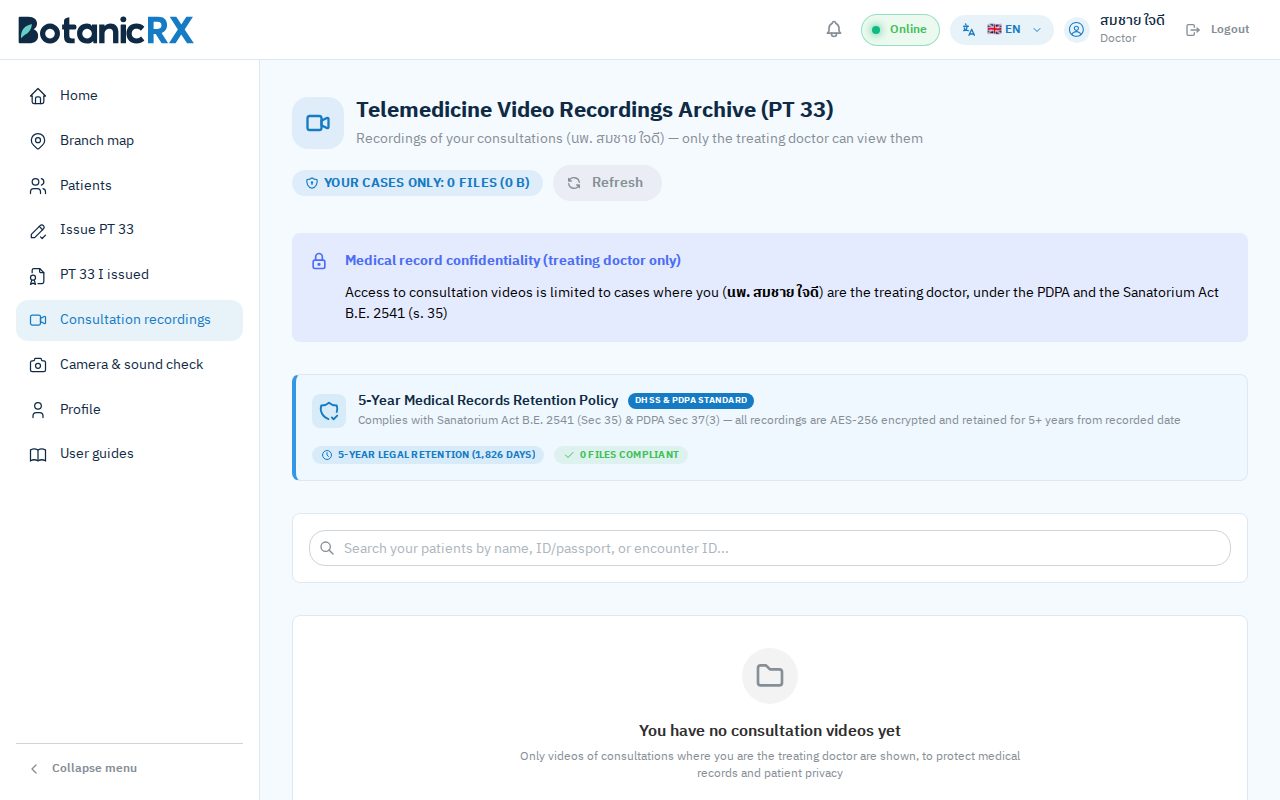
Consultation recordings
You see only the recordings of your own consultations. They are AES-256 encrypted, open through short-lived links, and are kept for at least 5 years as the medical-records law requires.