User guide · Patients
See a doctor online, collect at a shop near you
Sign up, verify your identity, video call a doctor, then collect your medicine with a PT 33 prescription.
1Getting started
Botanic RX works on phones and computers in the web browser. There is nothing to download from an app store.
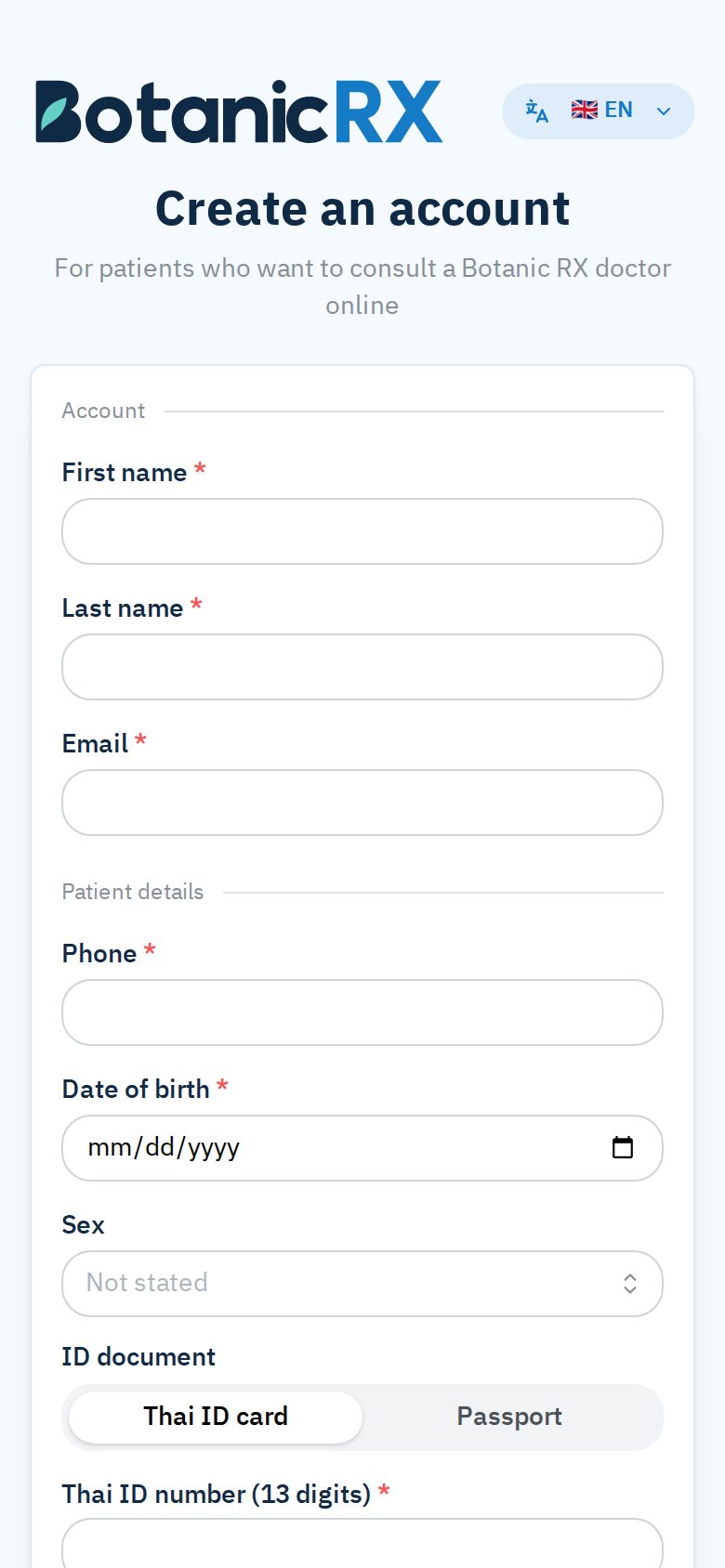
Create an account
- Open the Botanic RX website and tap Register
- Enter your first and last name, email, phone number, date of birth, sex and Thai ID number (foreigners use their passport number)
- Open the email from Botanic RX and tap the confirmation link. It works for 24 hours
- Set a password, and you can sign in straight away
Rather not sign up yourself?
Visit a Botanic RX partner shop: the staff can register you with your ID card or passport.
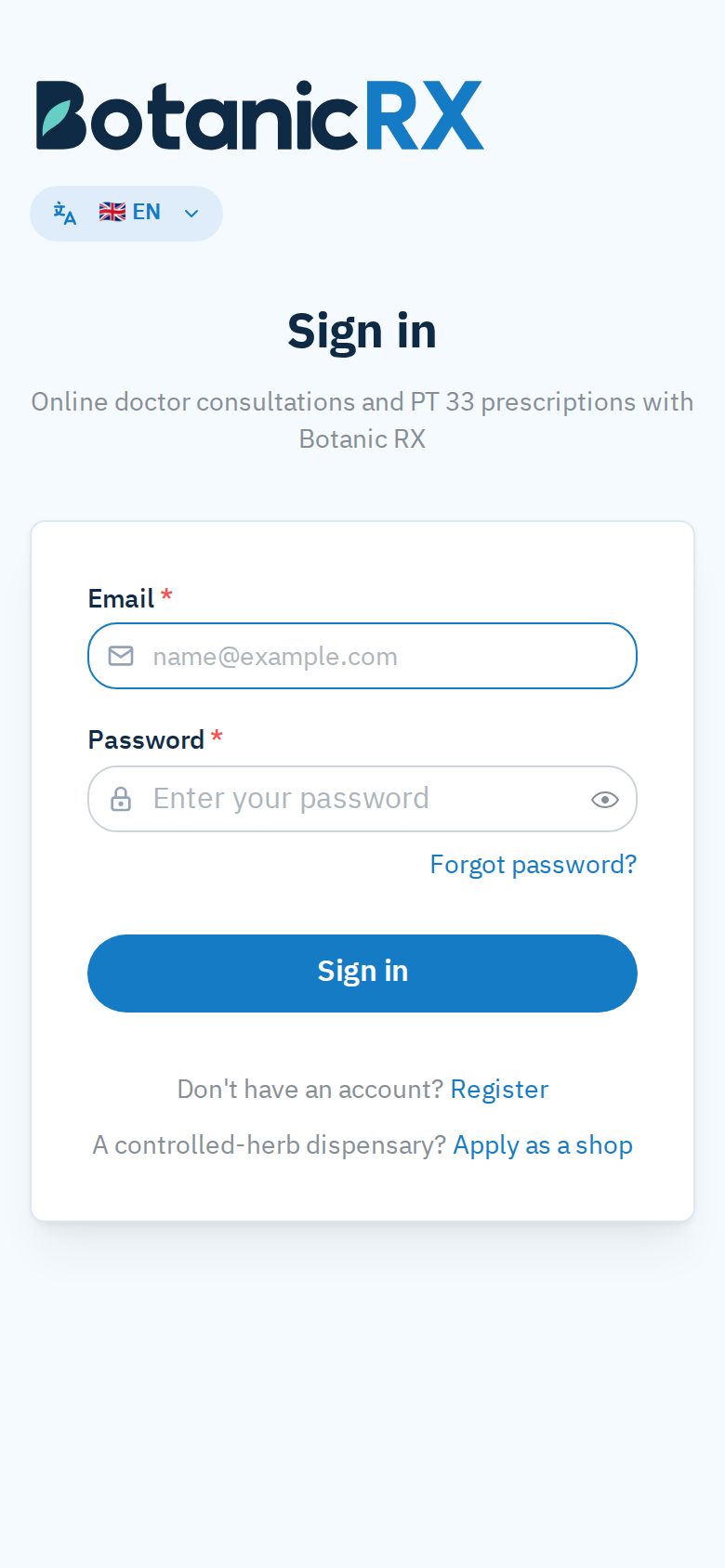
Forgotten password
On the sign-in page tap Forgot password? and enter your email. We send you a link to set a new password.
Install it as an app on your phone
- Phone: when a Botanic RX bar shows at the top of the page, tap Install (Android installs it at once; on iPhone it shows the steps). Not now? Tap ✕ and it stays away for 14 days
- iPhone: if you do not see the bar, open the site in Safari, tap the Share button, then choose "Add to Home Screen"
- Computer: click Install the app at the bottom of the left menu
- Opened from LINE or Facebook? Open the page in Safari or Chrome first: their built-in browsers cannot install apps
Change the language
Tap the TH / EN button at the top right and choose ภาษาไทย or English.
2Home page and menu
After signing in you see your home page. On a phone the bar at the bottom has five buttons: Home · Branches · Consult (the middle button) · Prescriptions · Profile.
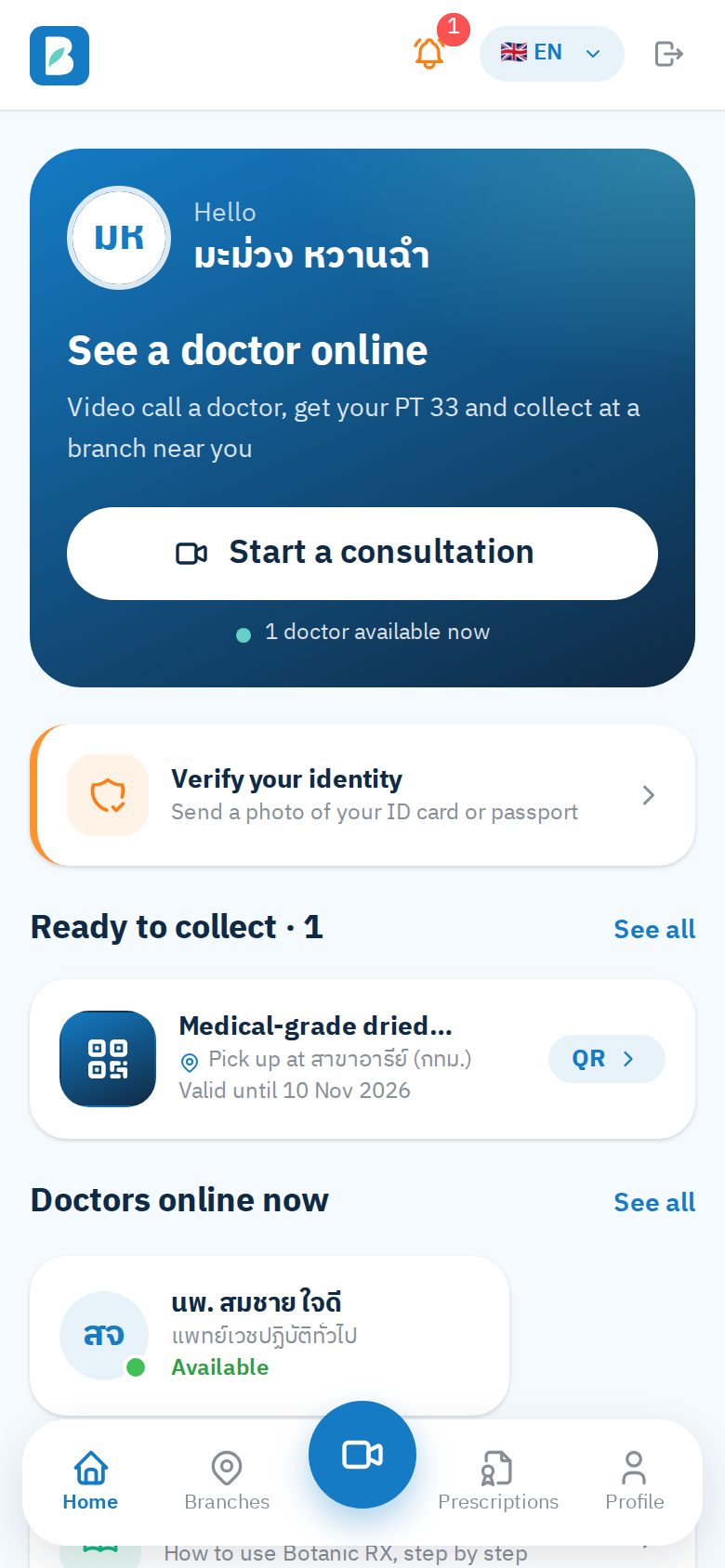
Notifications
- When a doctor issues your PT 33, a message "Your PT 33 prescription is ready" pops up with a chime, and the bell at the top right shows a number
- Tap the bell to see the prescriptions ready to collect. Tap Notify me on this device in the bell so your phone tells you even when this page is not open
- Notifications work while the app or site is open (in the background is fine). If you closed it, you will see it on your home page and the bell when you open it again
Your profile
Your details as on your ID, your contact details (email, phone, address) and the identity card. At the end is a More menu: Camera & sound check · Patient guide · Contact us.
3Verify your identity
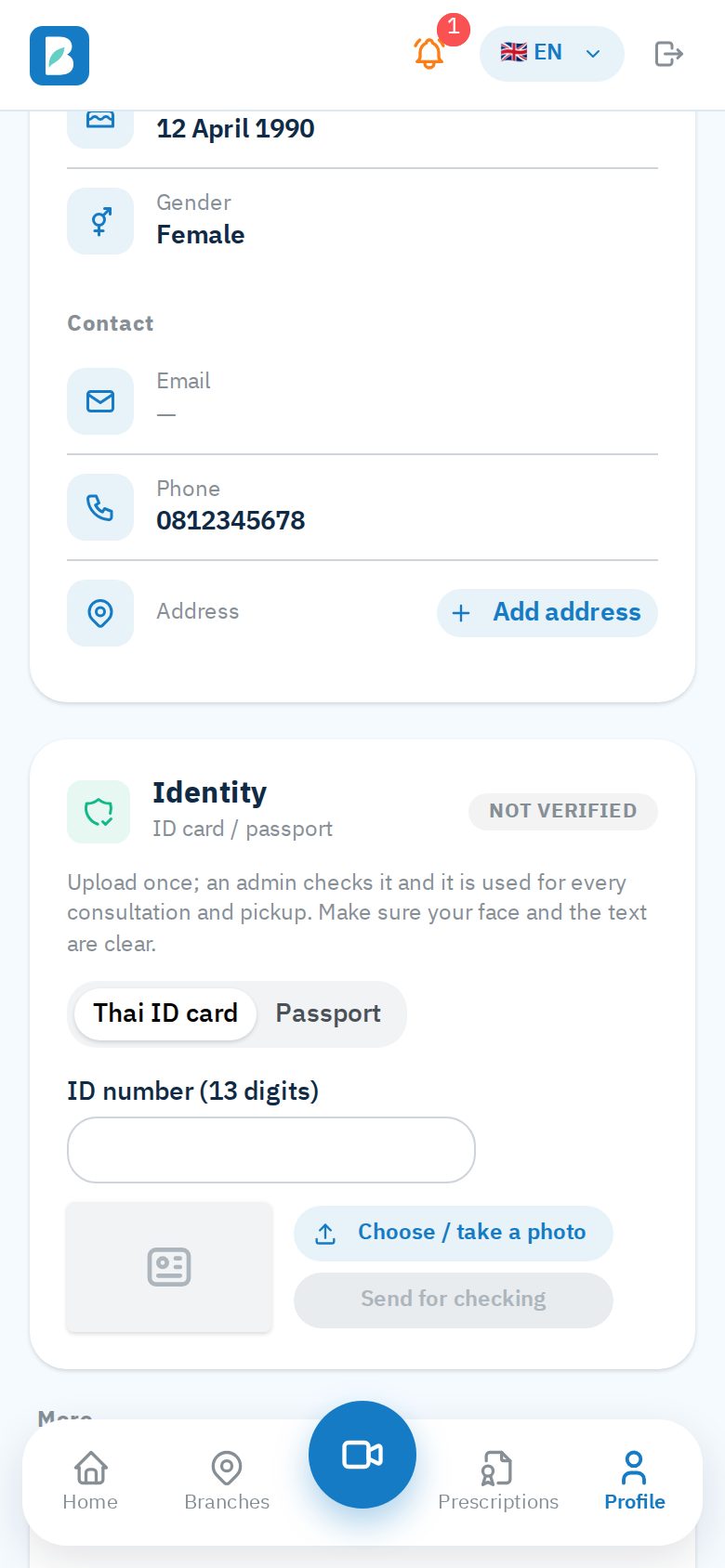
You verify your identity once. Our staff compare your document photo with the details you signed up with; it supports the doctor’s prescription.
- On the home page tap the Verify your identity card (orange edge). It opens the identity card on your profile
- Choose Thai ID card or Passport and enter the document number
- Take or choose a photo of the document: the text must be sharp, with no glare
- Tap Send for checking and wait for the result on the same card
The result
If it is not accepted, the card says why: fix it and send again. Once verified, your name, date of birth and ID number are locked; to change them or the document, tap Ask to change details / document and an admin will reopen it.
4Video consultation
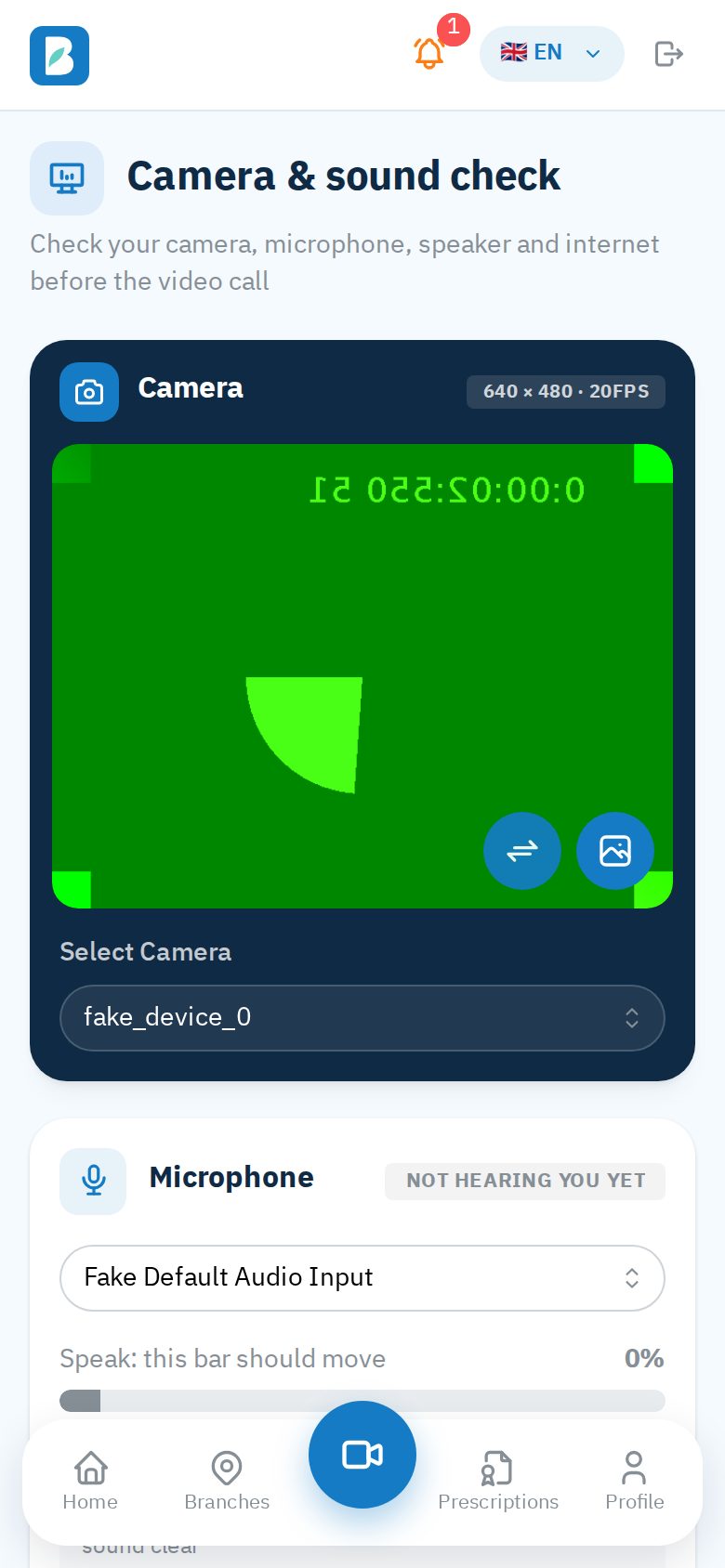
Have your ID card or passport ready, and find a quiet place with a good internet connection. Before your first call, test your camera and sound: Profile → More → Camera & sound check. Speak and watch the bar move, tap Start recording to hear yourself, Play a test sound to check the speaker, then All good, save these.
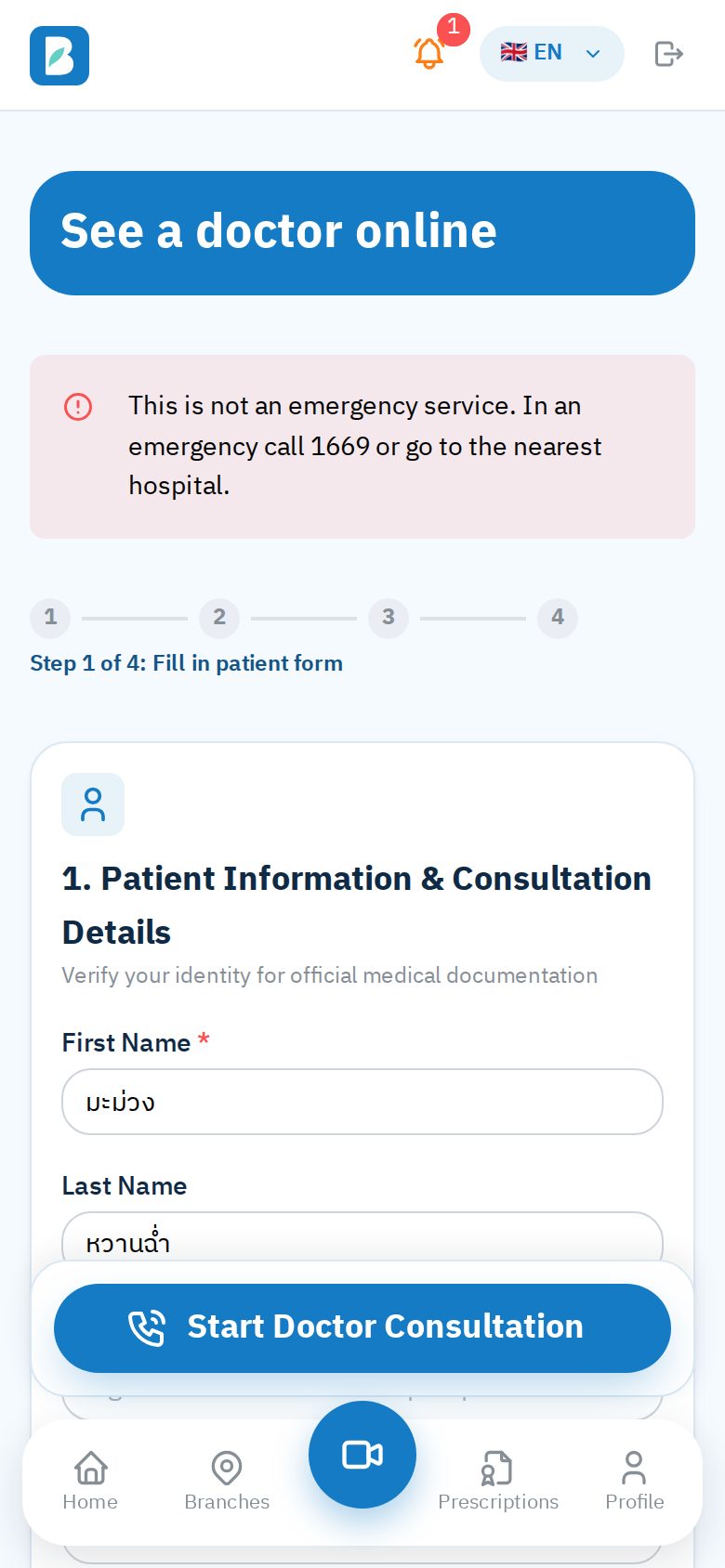
- Tap Consult (the middle button of the bottom bar). A progress bar under the title shows which step you are on
- Patient details and symptoms: check your name (locked once you are verified), add your phone number, choose the symptoms that fit, and answer the questions on drug allergies and long-term conditions
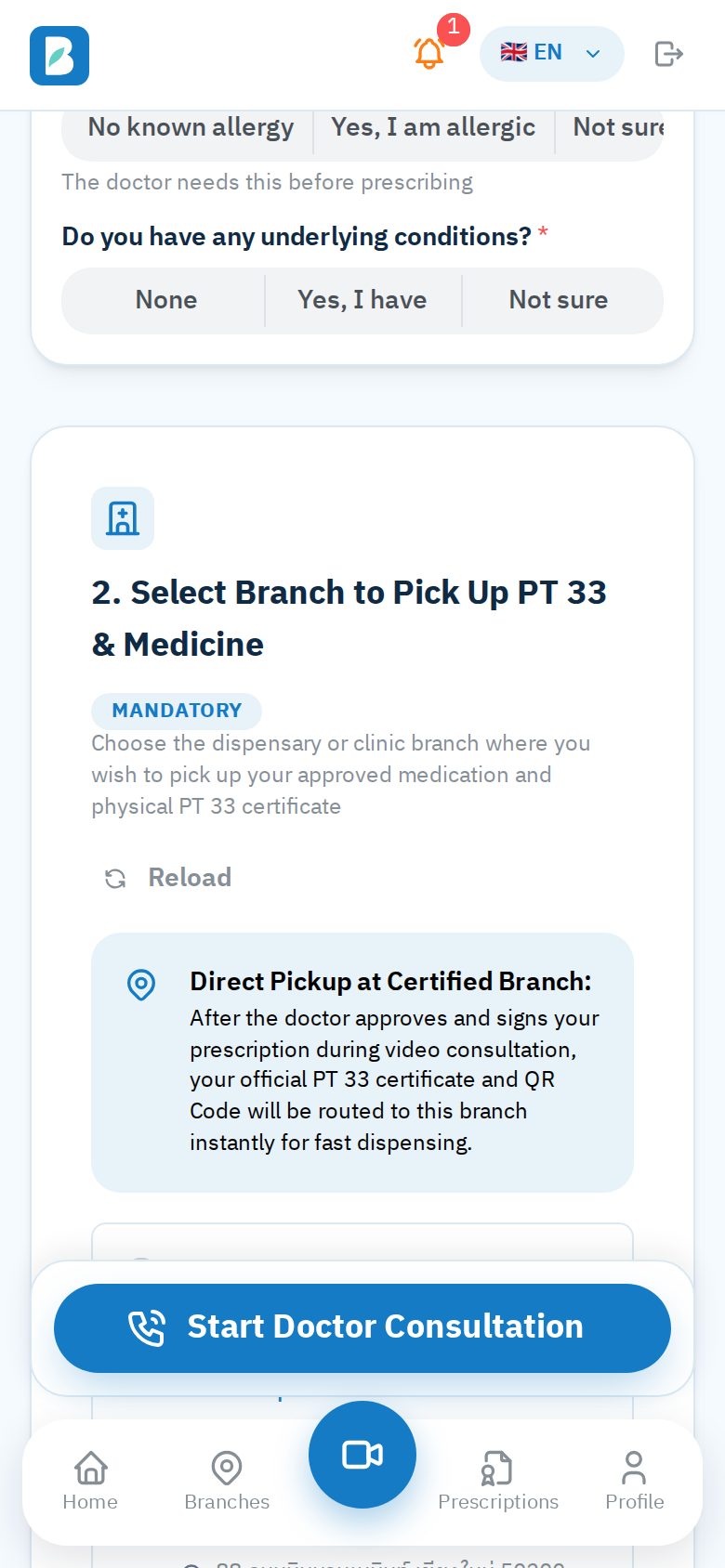
- Pickup branch: where you will collect the prescription and medicine. Tap Branches near me to sort the branches by distance from where you are; the nearest one is picked for you and you can choose another
- Doctor: "Fastest Available Doctor (Recommended)", or a doctor of your choice
- Tap Start Doctor Consultation. If there is a consultation fee you pay it first, by card or PromptPay QR
- Read and accept the consent for remote care, video recording and the use of your personal data (PDPA)
- Allow the browser to use your camera and microphone, then wait for the doctor to answer
During and after the call
- The doctor asks about your history, examines you and records the visit
- If the call drops, go back to the home page: the "unfinished consultation" card has Call again or Rejoin. There is nothing to fill in again and no second fee
- Do not want to continue? Tap Cancel consultation on the same card and choose a reason (a fee already paid is not refunded by itself: contact us for a refund)
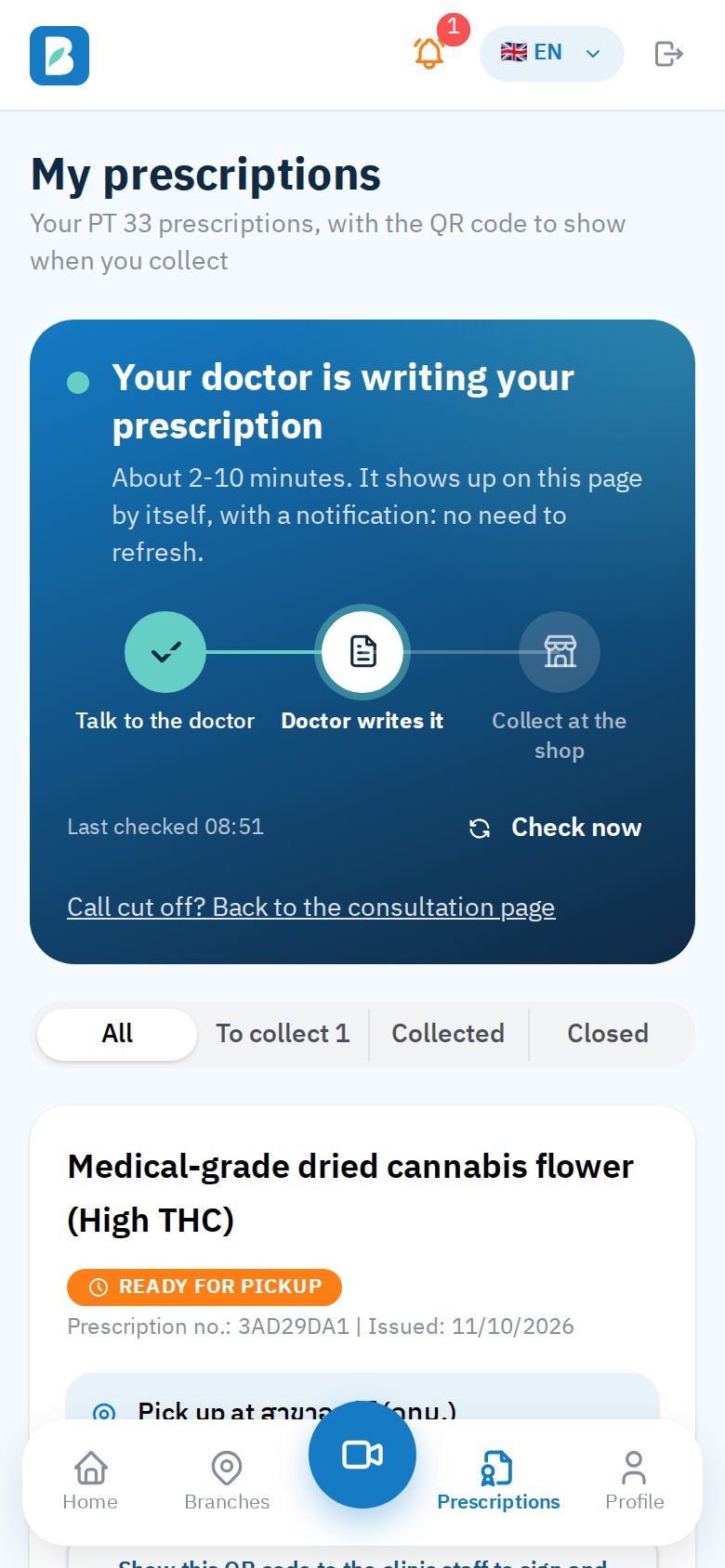
- After the call, Prescriptions shows "Your doctor is writing your prescription". It takes about 2-10 minutes and shows up by itself, with a notification (when the doctor decides to prescribe). Tap Notify me when it is ready so your phone tells you
Not an emergency service
For severe symptoms or an emergency, call 1669 or go to the nearest hospital.
5Prescriptions and pickup
Every PT 33 prescription has a QR code the shop uses to check it is genuine. It can be collected only at the branch you chose, before it expires.
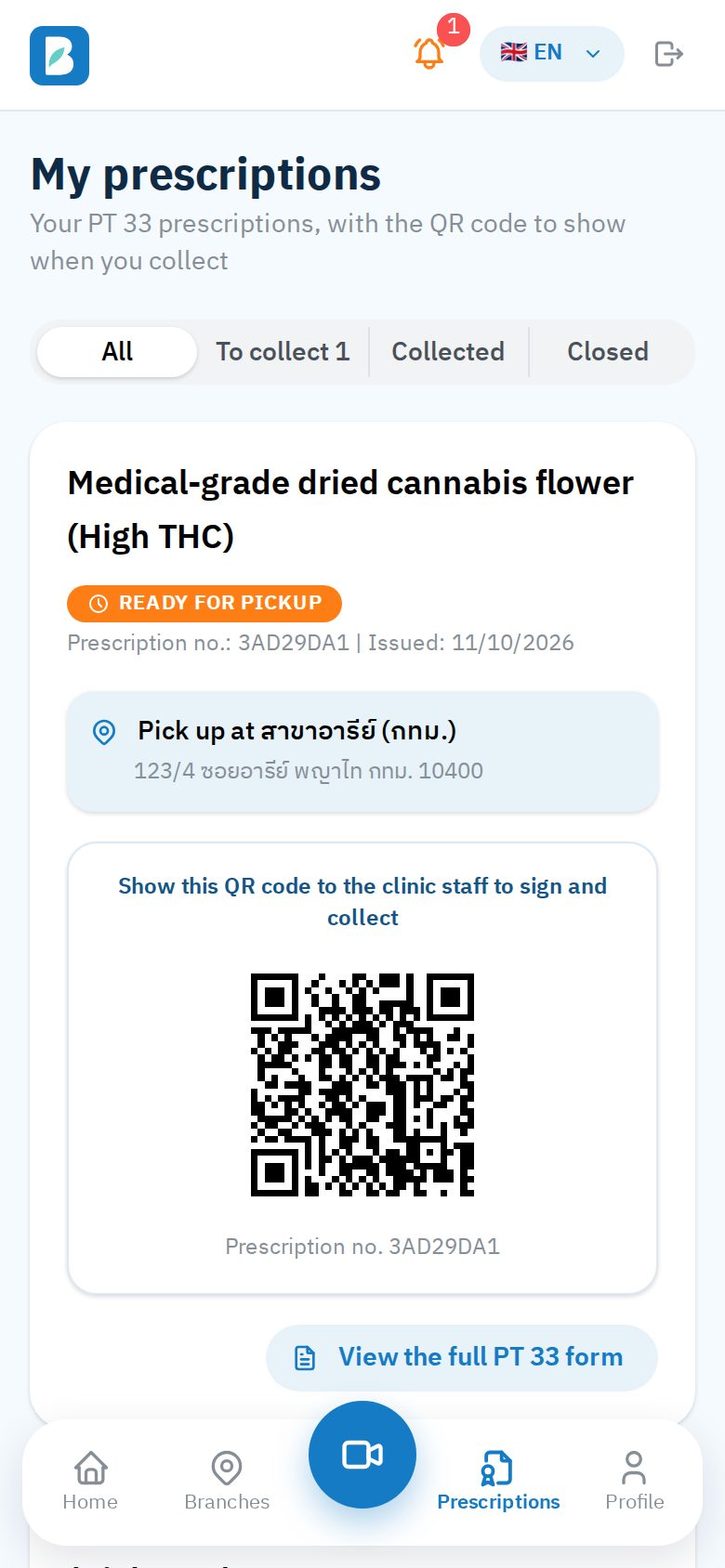
- Open Prescriptions, or tap the prescription card on your home page, to see the medicine, the pickup branch and the last day to collect
- Go to that branch with your ID card or passport
- Open the prescription and let the staff scan its QR code
- Sign for the medicine on the shop’s screen. The prescription changes to "Dispensed"