User guide · Partner shops
Partner shops and counter staff
Register walk-in patients, call a doctor, dispense against PT 33 prescriptions and see your monthly totals.
1Getting started
A shop account is created by Botanic RX’s administrators and belongs to one branch. Everything the shop sees is that branch’s.
- Sign in with the email and password you were given. The first time, set your password from the link in the email
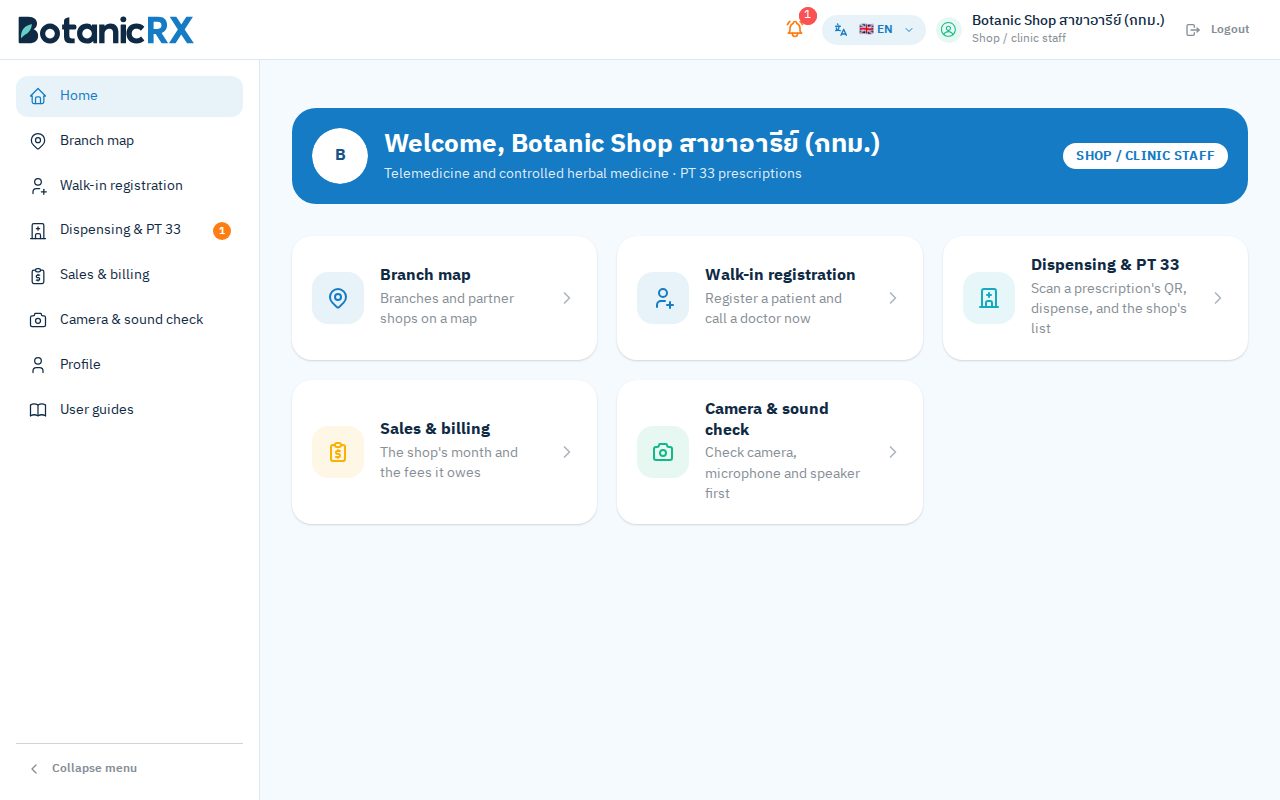
- The home page has a shortcut card to every shop menu
Account not linked to a branch
If the app says the account is not linked to a branch, you cannot register patients or see prescriptions. Contact the administrators.
2The shop PIN
Sales & billing and Profile ask for a PIN first, so only the owner can open them even when staff share the shop account.
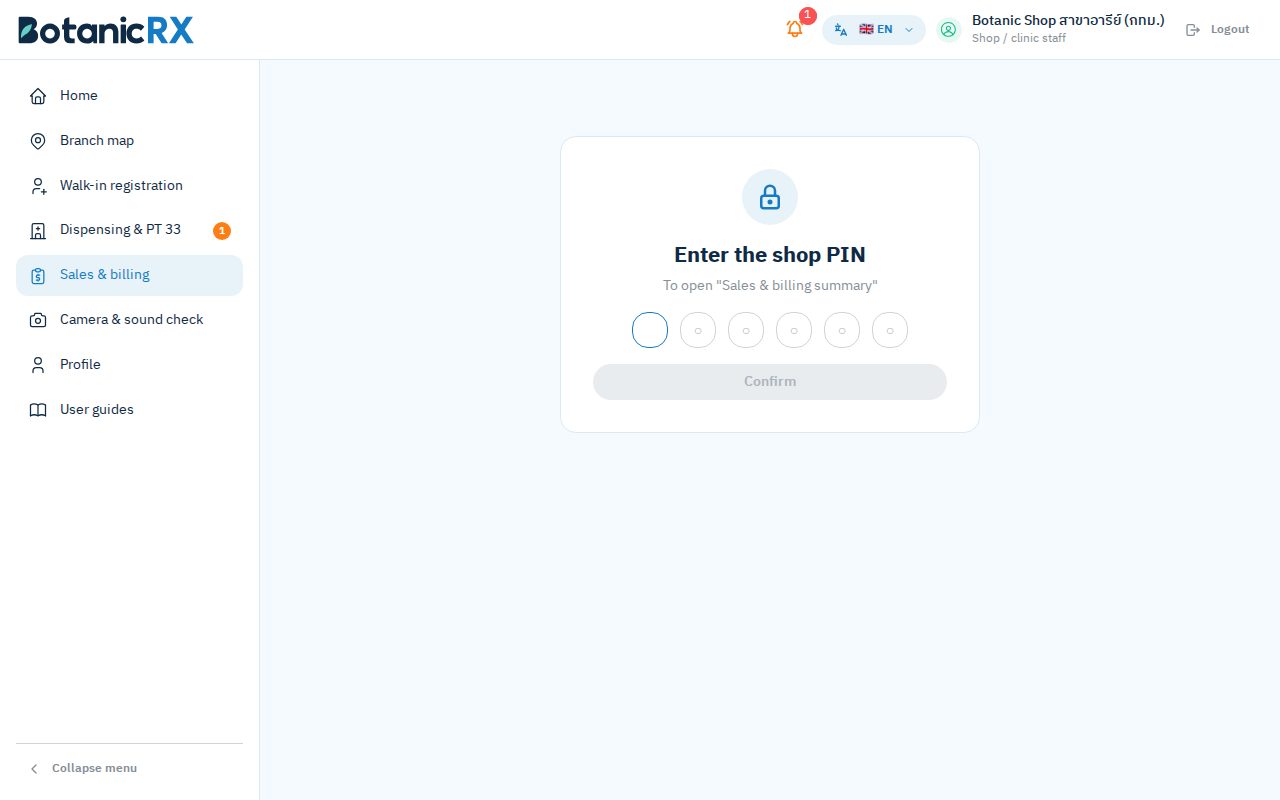
- The first time, you set a new PIN
- Change the PIN on the Profile page
- After 5 wrong PINs it locks for 15 minutes
- Forgot it? Ask the administrators to clear it, then set a new one next time
Tip
Do not tell the PIN to staff, and do not use a birthday or a run of numbers.
3Walk-in registration and calling a doctor
A patient at the shop can be registered and video call a doctor from the shop’s computer, without an account of their own.
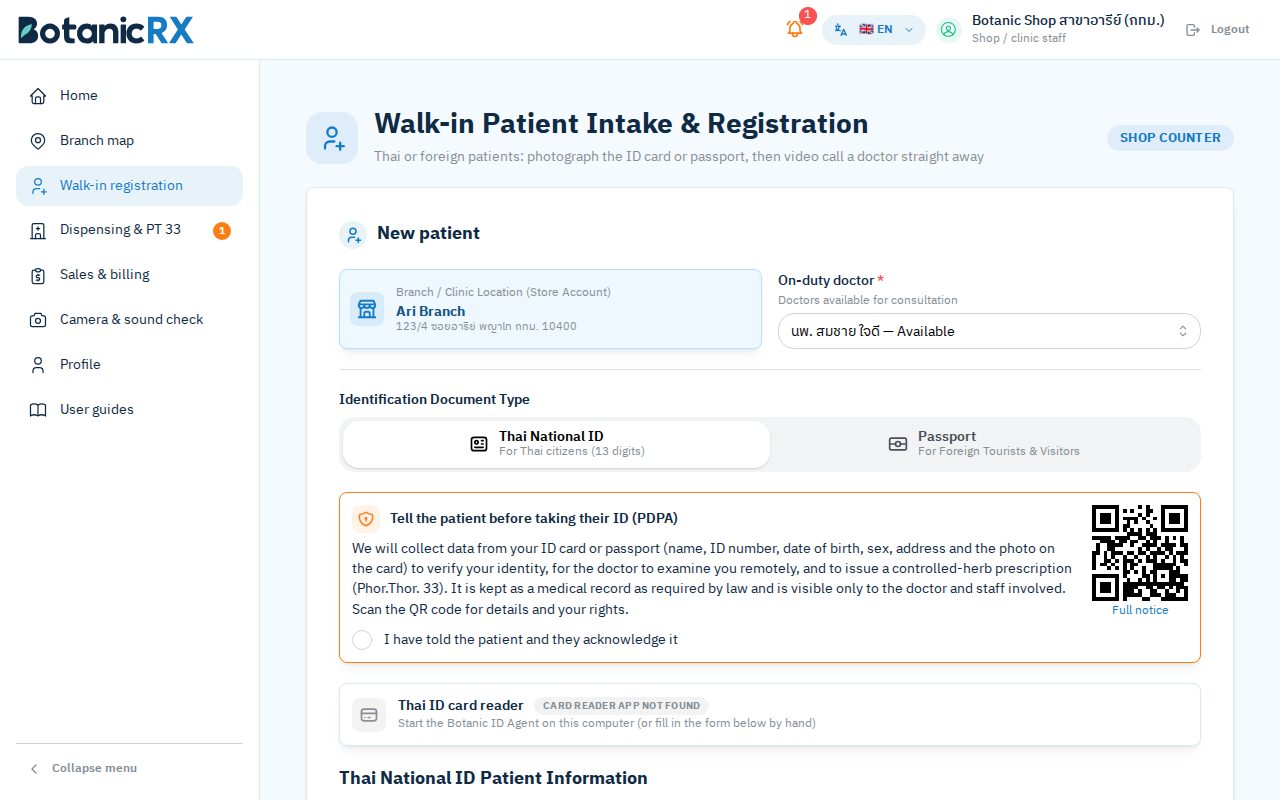
- Tell the patient before taking the card (PDPA): read them the text in the orange box, or let them scan the QR code for the full notice, then tick "I have told the patient and they acknowledge it"
- Choose Thai ID card or Passport and enter the document number first. For a returning patient the details and earlier card photo are filled in
- With a card reader: open the Botanic ID Agent and insert the card, and the form fills itself. Without one: type the details
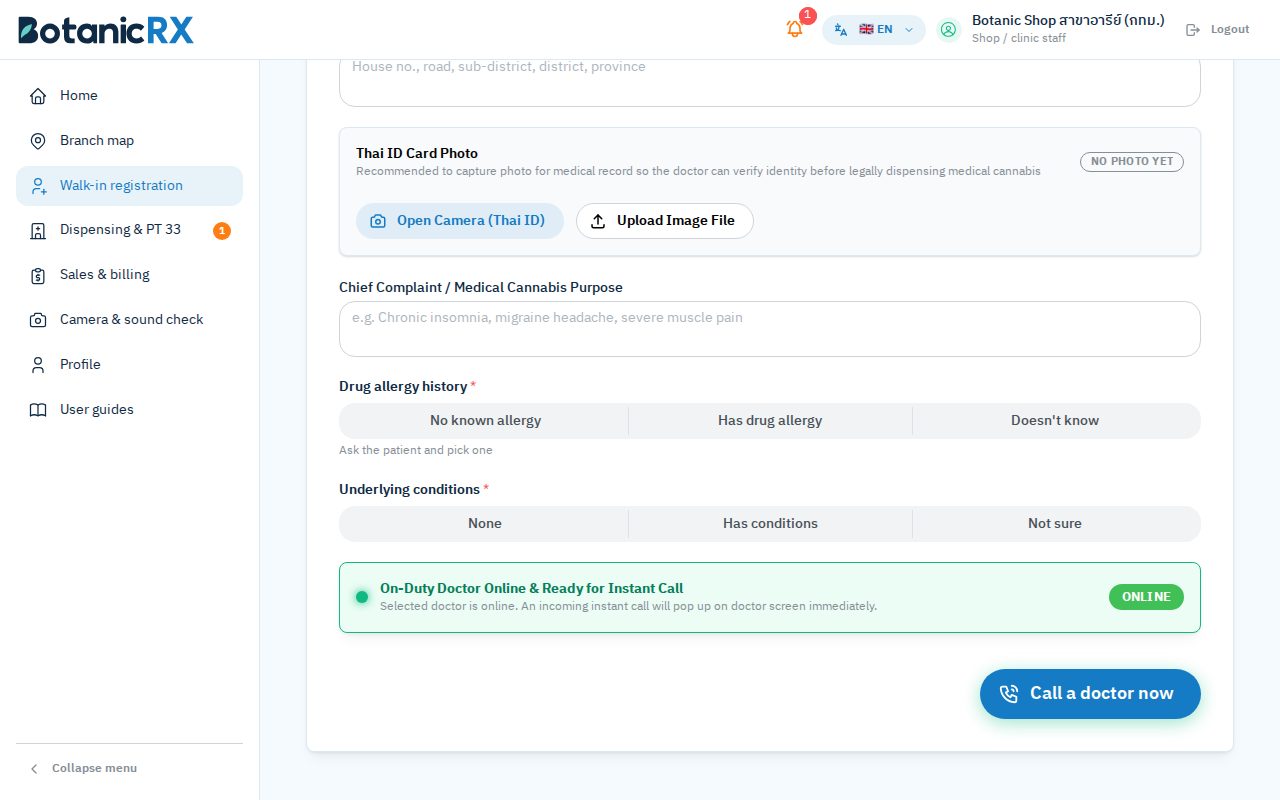
- Photograph the ID card or passport, and check the name against the card and the person
- Enter the age (20 or over), symptoms, drug allergies and long-term conditions. Ask the patient every question
- Measure the blood pressure and pulse with the shop’s monitor and enter the upper and lower numbers and the pulse. If it cannot be measured, tick "Could not measure" and give the reason. From 140/90 the doctor sees a warning
- Choose an available doctor and tap Call a doctor now
- The patient reads and accepts the consent on screen, then talks to the doctor. Staff can stay to help if the patient wants
The customer wants to talk to the doctor on their own phone: register them as usual, then
- Under "The customer talks to the doctor on", choose Their own phone (scan a QR code) and call the doctor
- The customer scans the QR code on the screen with their phone camera (or copy the link and send it in a chat). No sign-up: the link works for this case only
- The customer reads the consent on their phone, taps "I agree" and then "Join the consultation", and allows the camera and microphone. The shop’s screen shows whether they have joined
- When the doctor finishes, the phone tells the customer to come back to the counter. Dispense and take the consultation fee at the shop as usual
Trouble with the customer’s phone
Tap "Use the shop’s device instead" at any time. If the QR page was closed, tap "Show the QR code again" in the list of unfinished cases.
After the call
The doctor issues the PT 33 for your branch. It appears in "Dispensing & PT 33" at once.
4Dispensing against a PT 33
- Open Dispensing & PT 33, scan the patient’s QR code or type the prescription number (e.g. 3AD29DA1) and search
- The "Dispense & sign" tab opens: check the patient’s name, the medicine and the branch
- Check the ID card or passport of the person collecting against the photo on record. If there is no photo yet, photograph the card
- Have the patient sign on screen, or upload a photo of the signed PT 33
- Tap Confirm dispense. The prescription changes to "Dispensed" and cannot be used again
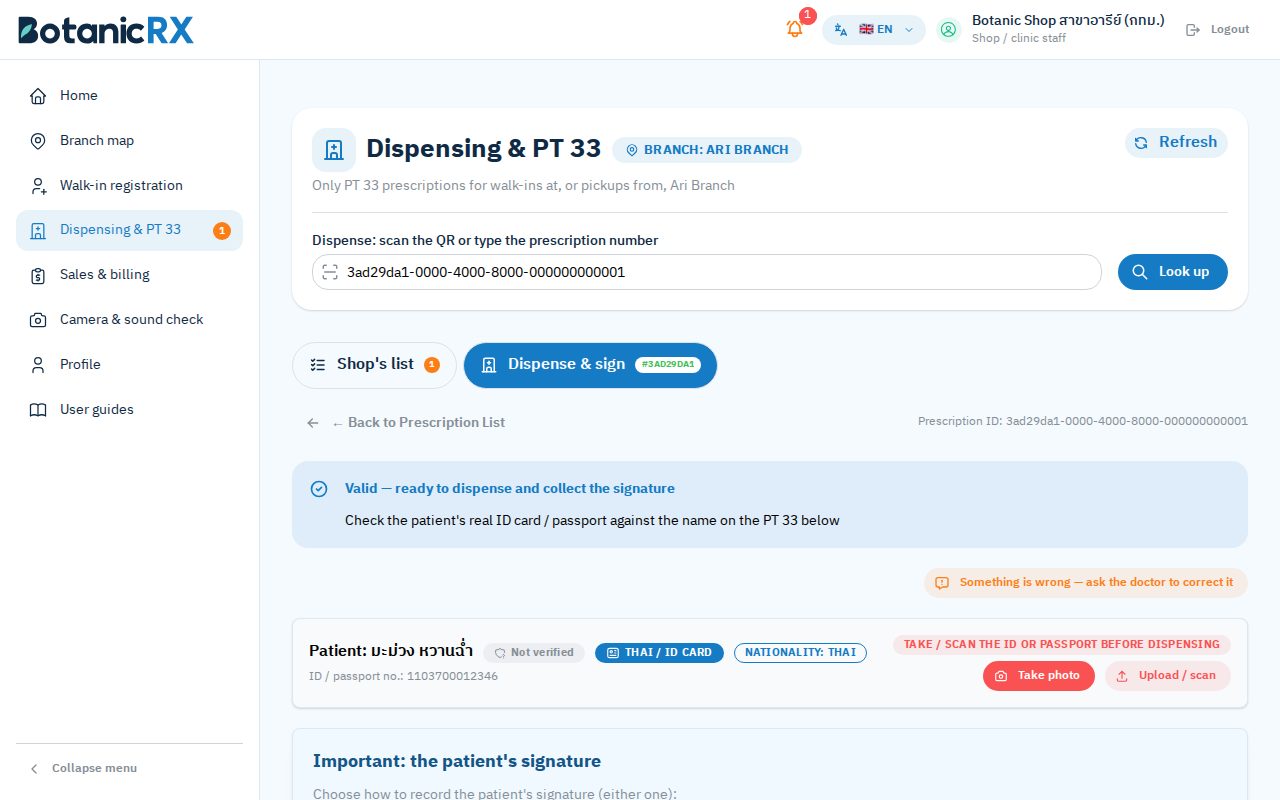
The app will not dispense when
it is for another branch · it has expired · it was cancelled · it was already dispensed. If something on it is wrong, ask the prescribing doctor to correct it from the same screen.
USB receipt printer (e.g. XP-Q90EC 58 mm)
Install the new Botanic ID Agent (the same program as the card reader) and the printer’s driver, then choose the printer under "Camera & sound check → Receipt printer" (tick "Cut the paper" only on a printer with a cutter: one without hangs) and print a test slip. Receipts then print by themselves after a sale, cut the paper and open the drawer for cash.
The consultation fee (Botanic POS)
For a walk-in, the bill adds "Doctor consultation" at the price the admin set for your branch; a customer who paid in the app is not charged again. Not charging it needs a reason. A walk-in consultation that ended without a PT 33 is listed under "Consultation fees not taken yet" on the shop’s list: take the fee there and print its receipt.
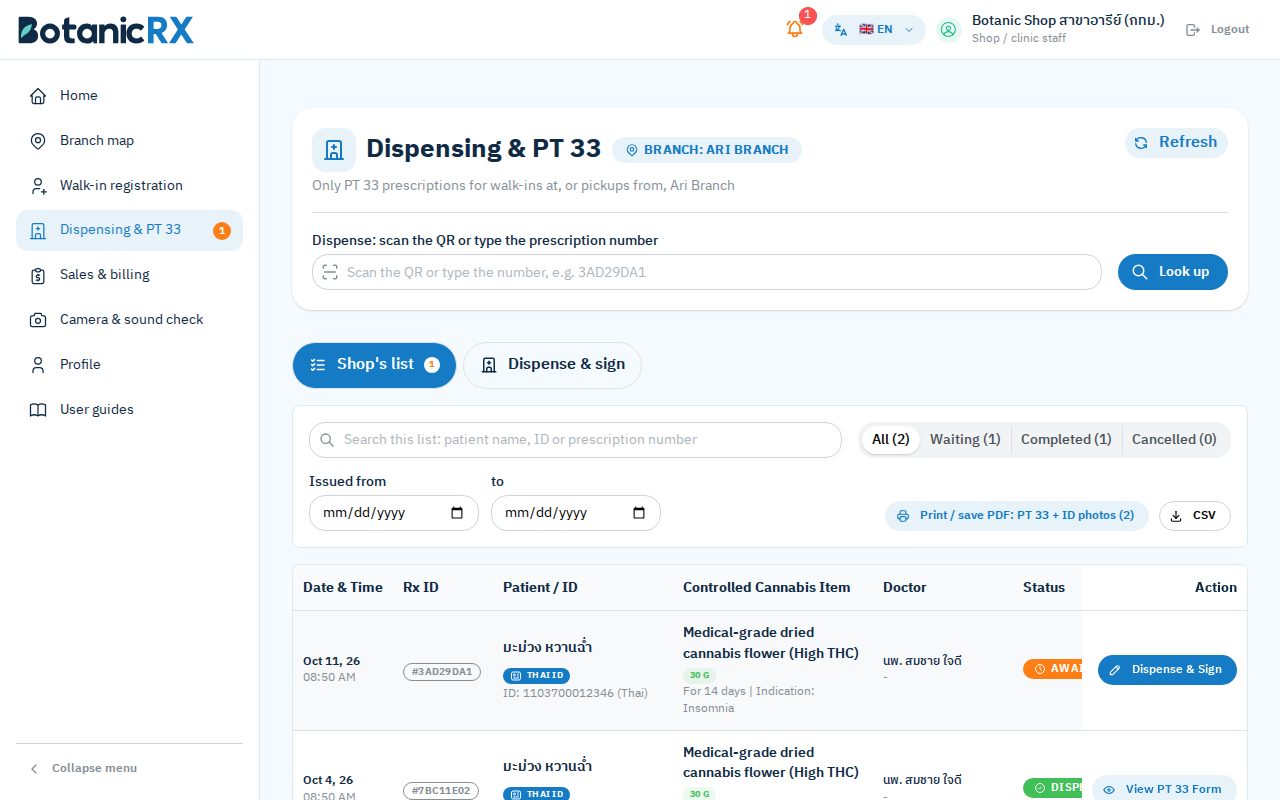
The shop’s list
The shop tab lists every prescription for your branch.
- Filter by status (all / waiting / dispensed / cancelled) and by the date issued
- Search by patient name, ID number or prescription number
- Print or save a PDF of the PT 33 with the ID photo, and download a CSV for your records
5Monthly totals and fees
Sales & billing (PIN required) sums up the branch’s work month by month.
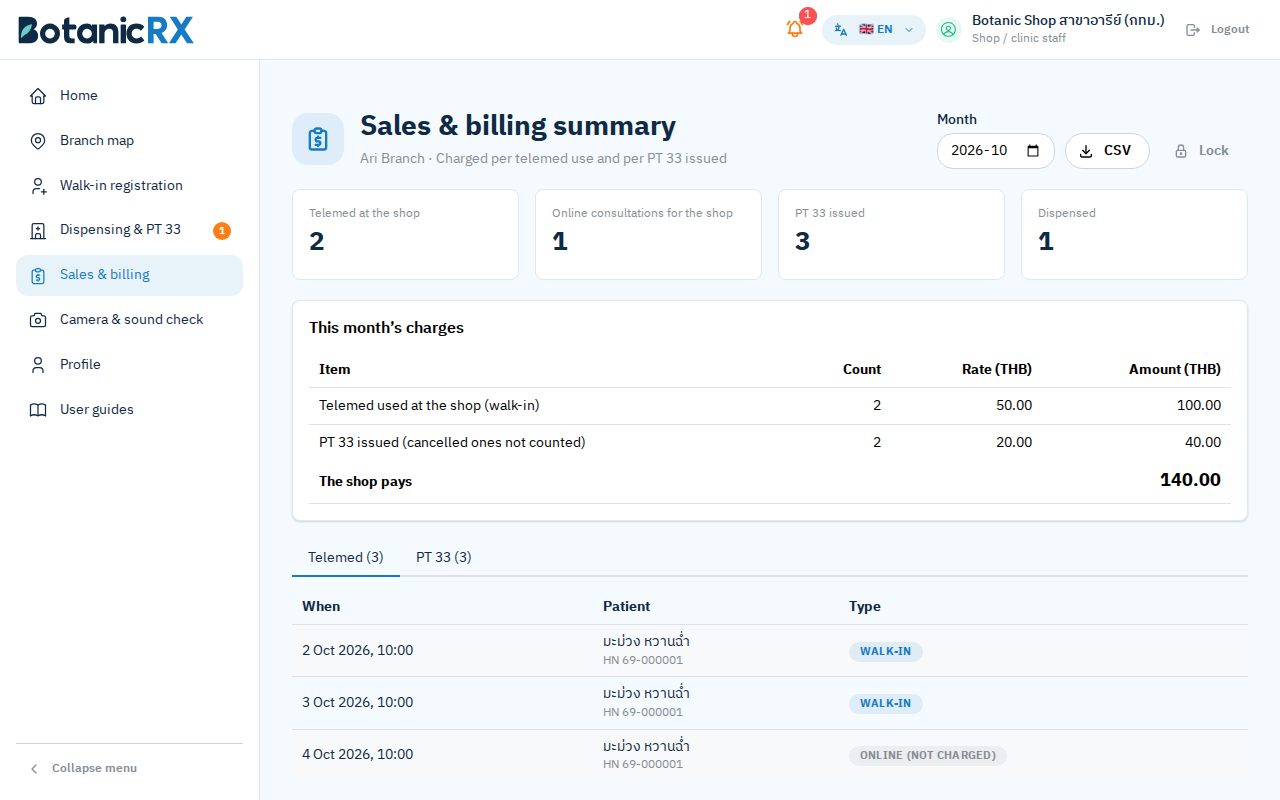
- Walk-in patients who saw a doctor, PT 33 prescriptions issued, and those dispensed
- Service fees at the rates Botanic RX set for the branch, and what the shop and Botanic owe each other
- Every item behind the totals, one tab each
- Choose the month at the top right, and download it as CSV
A total looks wrong?
Check the month you chose, then contact Botanic RX finance with the prescription numbers in question.